
Understanding the Core Technologies and Their Requirements
Paying for the most expensive streaming plan does not guarantee HDR picture or immersive sound. These features work only when every necessary part of the playback chain supports them.
Before upgrading a subscription or replacing equipment, check five things: the plan, the individual movie or episode, the streaming app or player, the display or audio equipment, and the connection between devices. The first unsupported component determines what you actually receive.
It is also important to separate the formats. HDR improves brightness, contrast, and color range. Dolby Vision is a proprietary HDR format that can optimize the image dynamically. Dolby Atmos carries immersive audio information. Spatial Audio is a broader term that may describe Atmos playback, headphone virtualization, head tracking, or another platform’s spatial processing.
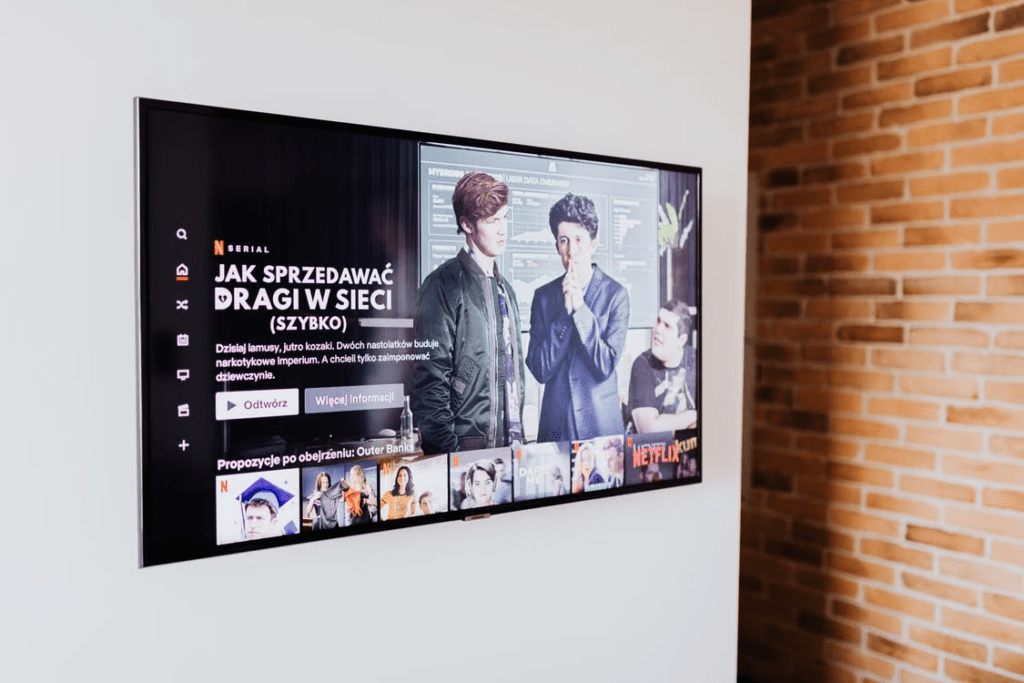
Check the Plan and Title Before Buying New Hardware
Start with the streaming service because plan restrictions are cheaper to investigate than hardware problems.
Open the service’s current plan-comparison page for your country and look specifically for 4K, Ultra HD, HDR, Dolby Vision, Dolby Atmos, or Spatial Audio. Do not assume that a plan offering one of these features includes all the others.
Netflix, for example, tells viewers to confirm that their plan supports the desired video quality. Its current Dolby Atmos guidance also requires a plan that supports Ultra HD, an Atmos-capable playback device and audio system, and playback quality set to High or Auto.
Other services organize their tiers differently. Disney+ states that its ad-supported subscription does not currently support Dolby Atmos audio, illustrating why a rule taken from one platform should not be applied to another.
After checking the plan, open the actual title page. Look for format labels such as HDR, Dolby Vision, Dolby Atmos, 4K, or UHD. These badges matter because premium formats are licensed and prepared title by title. A supported plan and device cannot create a native Dolby Vision or Atmos version when the selected title does not provide one.
Check the badge on the device you will actually use. A format displayed in a mobile app, web search result, or promotional page may not be available through every television app, browser, device generation, language track, or region.
Audio labels may also change when you select another language. The original-language track might offer Dolby Atmos while a dubbed track provides 5.1-channel or stereo sound. Switch audio tracks and inspect the label again before assuming the equipment has failed.
Verify the Complete Video and Audio Chain
For HDR video, the television or monitor must support the format being delivered. A television that supports HDR10 does not necessarily support Dolby Vision. Likewise, 4K resolution alone does not establish HDR compatibility.
If you use the television’s built-in streaming app, the chain is relatively simple:
Streaming service → TV app → HDR-capable display
The television model, installed app, firmware, selected plan, and title must all support the format.
An external streaming box introduces additional checks:
Streaming service → streaming device → HDMI connection → television
Both the streaming player and television must support the intended HDR format. The HDMI input may also need an enhanced-format setting enabled. Television manufacturers use different names for this option, so consult the instructions for the exact model rather than searching only for one generic setting name.
Do not buy an HDMI 2.1 cable solely because an article says HDR requires it. Ordinary streaming video often does not use the demanding frame rates associated with some HDMI 2.1 features. Use a properly certified cable that supports the signal required by the source and display, and replace it when you experience blank screens, flashing, dropouts, or unexplained fallback to a lower format.

Dolby Atmos adds an audio path:
Streaming service → playback device → television or receiver → Atmos-capable sound system
Every component that handles the audio must preserve or decode the required format. A soundbar supporting Atmos may still be unable to pass Dolby Vision video, while a television supporting Dolby Vision may have limitations in how it sends Atmos audio to an external system. Apple specifically warns that some soundbars and receivers support Atmos but not high-quality video formats such as HDR10 or Dolby Vision.
In that situation, the connection layout matters. Connecting the player through the soundbar may preserve Atmos but restrict video. Connecting it directly to the television may preserve Dolby Vision but introduce audio-return limitations. ARC, eARC, passthrough support, and the formats used by the streaming app determine the better arrangement.
A television or soundbar labeled “Dolby Atmos” can reproduce Atmos without a room full of speakers, but the result varies by equipment. Dolby describes home Atmos systems ranging from receivers with multiple speaker configurations to soundbars with upward-firing drivers, rear speakers, or virtualized processing.
Therefore, decide what result you expect. A viewer who wants clearly improved dialogue and a wider soundstage may be satisfied with an Atmos soundbar. Someone expecting convincing overhead movement should compare systems with dedicated height channels, upward-firing drivers, or ceiling speakers rather than relying only on the Atmos logo.
Treat Headphone Spatial Audio as a Separate Setup
Headphone Spatial Audio does not use the same setup as a home-theater Atmos system.
On Apple devices, Spatial Audio can combine compatible content with headphone processing and, on supported equipment, dynamic head tracking. Apple currently lists several compatible AirPods and Beats products for Spatial Audio with Apple TV 4K. Apple also states that the feature is not supported on Apple TV HD.
This means that owning Atmos-capable headphones is not the only consideration. The source device, operating-system version, app, selected audio track, headphone model, and account settings may all affect whether Spatial Audio or head tracking appears.
Apple Music is another example of why video-streaming assumptions should not be reused for music. Apple states that subscribers can listen to selected songs in Spatial Audio with Dolby Atmos on supported devices. The available setup differs among iPhone, iPad, Mac, Apple TV, HomePod, and headphones.
Other ecosystems may use Dolby Atmos for Headphones, Windows Sonic, proprietary gaming formats, or manufacturer-specific spatial processing. Some require software activation, while others work only in particular apps or games. Check the documentation for the exact platform instead of buying headphones merely because the packaging says “surround” or “spatial.”
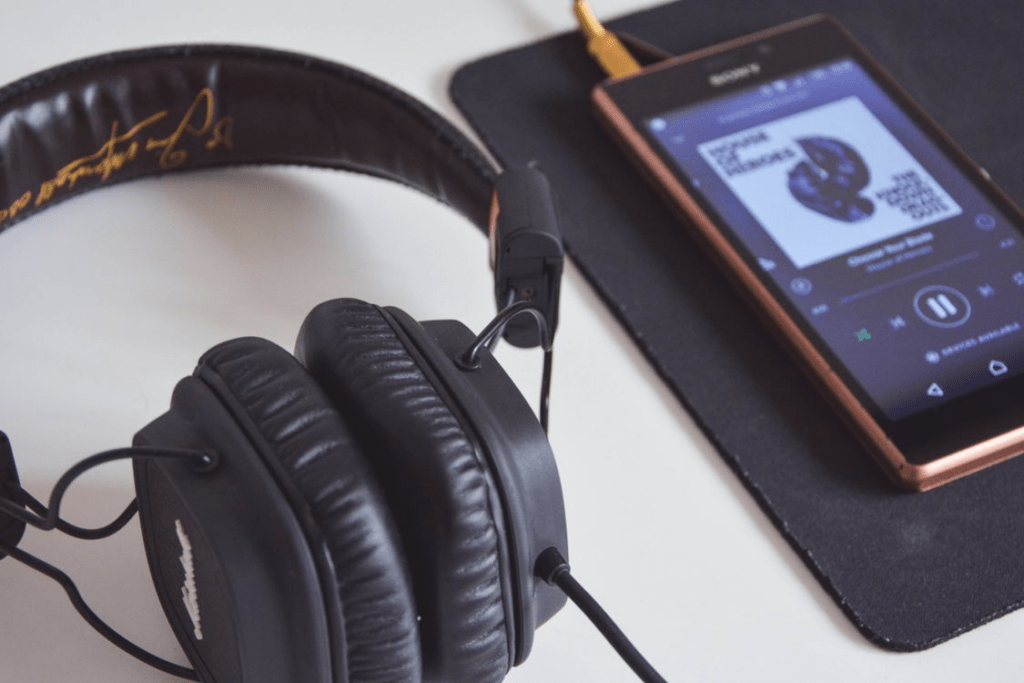
Find the Missing Link in the System
When a premium-format badge does not appear, avoid changing several settings at once. Test the chain in order.
First, confirm that the current plan includes the feature and that the selected title provides it. Next, verify that the exact app and playback device support the format. Then check the television, soundbar, receiver, HDMI input, and audio-return connection. Finally, inspect video-quality, data-usage, energy-saving, audio-output, and passthrough settings.
Use a title that the service itself identifies as HDR, Dolby Vision, or Dolby Atmos. If that title works, the original program or audio track probably does not offer the same format. If no known compatible title works, one of the plan, device, app, connection, or settings requirements remains unmet.
Network quality should be checked only after these compatibility questions. A slow or unstable connection can cause a streaming service to reduce quality, but purchasing a faster internet plan will not add Dolby Vision to an unsupported television or Dolby Atmos to an incompatible audio system.
Netflix currently specifies a steady connection of at least 15 Mbps for Ultra HD and HDR on supported configurations, but this should not be presented as a universal number for every service. Netflix Help Center Measure the speed on the playback device or near the television, not only beside the router. A wired connection or stronger Wi-Fi signal may solve instability without changing the broadband subscription.
Upgrade only the component that is actually blocking the feature. If the plan and title offer Dolby Vision but the television supports only HDR10, changing the soundbar will accomplish nothing. If the television displays Dolby Vision but the app reports only 5.1 audio, check the title’s audio track, player compatibility, and audio path before purchasing a new TV.
This approach gives the reader a clear result: either the existing system can be corrected through a plan, title, app, connection, or settings change, or the exact unsupported component has been identified before money is spent.